
For a long time, the biggest joke in the AI community was that robots could paint a masterpiece but couldn’t spell a simple word. If you asked Midjourney for a sign that said “Coffee,” you would usually get “Cofffeee” written in alien hieroglyphics.
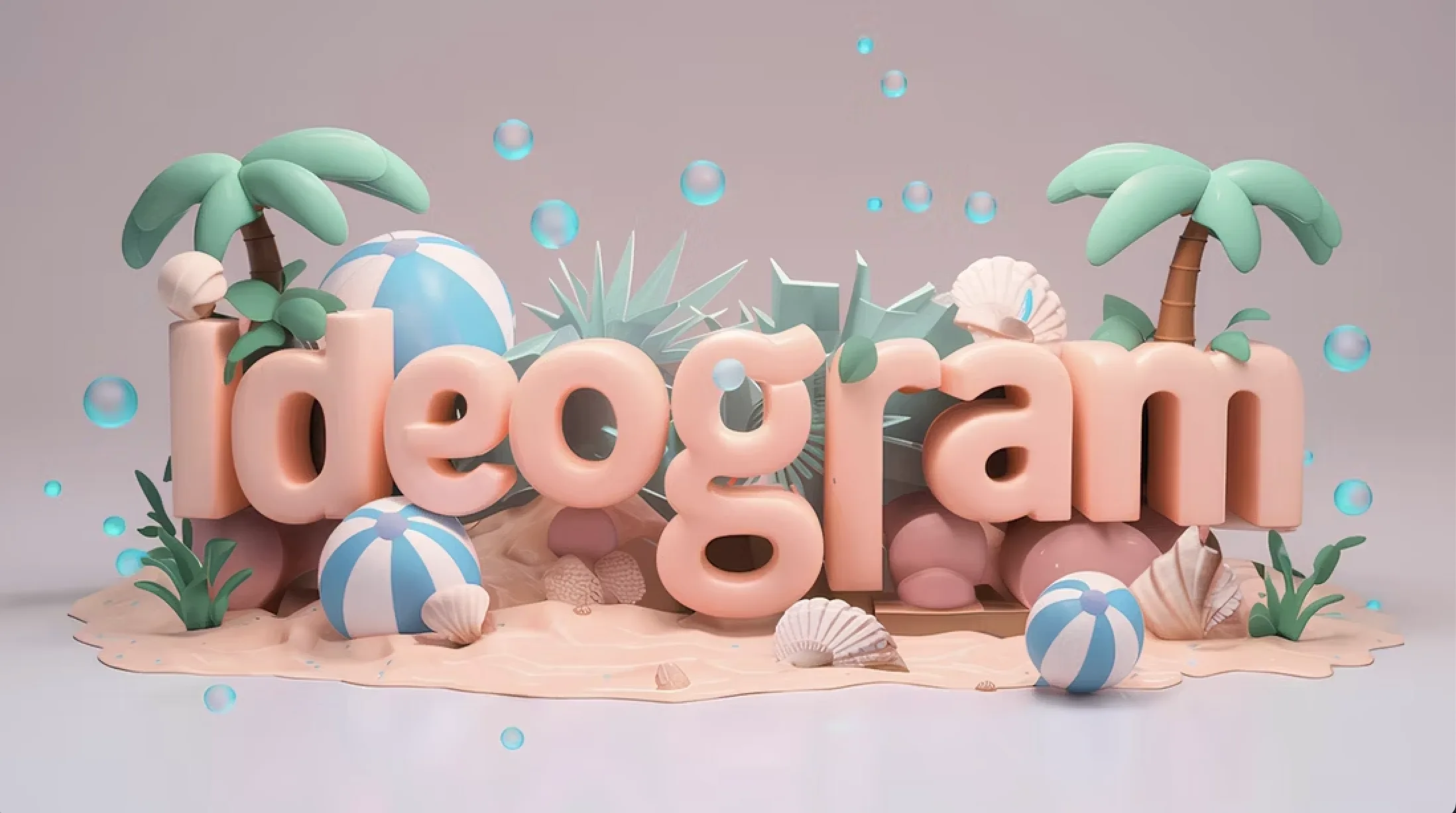
Ideogram changed everything. It was the first AI model built specifically to solve the text problem. For designers and small business owners, this is a revolution. It allows you to generate logos, t-shirt designs, and stickers where the text is not just legible—it is an integral part of the artistic composition. In this tutorial, we will show you how to harness Ideogram to create stunning logos that look like they were made by a branding agency.
What Makes Ideogram Different?
Most AI models treat text as texture. They see letters as just shapes, like leaves on a tree. Ideogram, however, understands typography. It knows the difference between a serif font and a graffiti tag. It understands how to wrap text around a circle or embed it into a 3D object.
This focus makes it the undisputed leader for:
- Logos: Where the brand name must be readable.
- Typography: Posters and album covers.
- Merchandise: T-shirts where the slogan is the main attraction.

Step 1: The Basics Of Text Prompting
To get perfect text, you need to follow a strict syntax. Ideogram is smart, but it follows your instructions literally.
The Golden Rule: Always put the text you want to display inside double quotation marks.
- Bad Prompt: A logo for a coffee shop named Morning Brew.
- Good Prompt: A vector logo for a coffee shop featuring a steaming cup, with the text “Morning Brew” written in elegant cursive typography.
If you don’t use quotes, the AI might try to turn the words “Morning Brew” into a visual concept (like a picture of morning light) rather than writing the words.
Step 2: Defining The Font Style
Just asking for “text” is not enough. To get a professional result, you need to use graphic design terminology. Ideogram has an extensive vocabulary of font styles. Try adding these keywords to your prompts:
- Serif: For traditional, trustworthy, and luxury brands (like banks or fashion).
- Sans Serif: For modern, clean, tech-focused startups.
- Slab Serif: For bold, industrial, or western vibes.
- Script / Calligraphy: For elegance, weddings, or organic products.
- Display / 3D Render: For loud, playful, or futuristic gaming logos.
Example Prompt: A minimalist logo of a mountain peak, the text “Summit” is written below in a bold Sans Serif font, modern style, black and white vector.
Step 3: Using The “Magic Prompt” Feature
One of the best features of Ideogram is “Magic Prompt.” You will see this toggle in the input bar.
When this is turned ON, you can write a lazy prompt like “cat logo pizza.” The AI will rewrite this into a detailed paragraph describing lighting, mood, and artistic style. This is great for beginners who want beautiful results fast.
However, when designing a specific client logo, you might want to turn Magic Prompt OFF or set it to “Auto.” sometimes the Magic Prompt gets too creative and changes the design too much. For total control, turn it off and describe exactly what you want.
Step 4: Iteration And Remixing
You rarely get the perfect logo on the first try. Ideogram’s “Remix” feature is essential for the design workflow.
- Generate a batch of 4 images.
- Find one that has a great composition but the text is slightly misspelled or the color is wrong.
- Click the “Remix” button (or “Image Weight”).
- Adjust the slider. High weight means “keep the image mostly the same.” Low weight means “use this as a loose inspiration.”
- Edit the prompt to fix the error (e.g., change “red” to “blue”) and hit generate again.
This allows you to polish a rough idea into a final asset without losing the initial spark.

Advanced Tip: 3D Text integration
Where Ideogram truly shines is in making text interact with the environment. It doesn’t just paste letters on top; it renders them inside the scene.
Try prompts that describe materials:
- ” The word “Neon” written in glowing glass tubes on a brick wall.”
- ” The word “Nature” formed out of twisting vines and leaves.”
- ” The word “Ice” carved out of a frozen glacier.”
This capability is fantastic for creating high-end 3D logos for video games or movies, something that would take a human 3D artist days to model and render.
Exporting For Work
Ideogram offers different aspect ratios.
- For logos, always choose 1:1 (Square).
- For t-shirts, choose 10:16 (Vertical).
Once you have your design, you can download the JPEG. Since Ideogram is currently raster-based (pixels), you might need to vectorizing tool (like Vectorizer.ai or Adobe Illustrator) if you need to print it on a large banner. However, for websites and social media, the quality is usually more than enough.
Conclusion
Ideogram has democratized logo design. It allows anyone with a creative vision to produce typography-driven art that looks professional. By mastering the use of quotation marks and font terminology, you can turn this tool into your personal graphic design agency, creating branding that stands out in a crowded market.